
Ergonomic mouse setup is a technical workstation configuration that optimizes proper mouse position by aligning the hand, wrist, and forearm in a neutral posture, providing a significant reduction in Repetitive Strain Injury (RSI) risks for computer users seeking long-term musculoskeletal health. Clinical data from the Occupational Safety and Health Administration (OSHA) indicates that correct peripheral alignment reduces localized muscle fatigue by up to 25%. Implementing this setup involves adjusting desk height, peripheral sensitivity, and grip mechanics to maintain physiological equilibrium during prolonged computing sessions.
Why is a proper ergonomic mouse setup critical for preventing RSI in 2026?
Ergonomic mouse setup is a preventative health strategy that mitigates Repetitive Strain Injury by eliminating excessive Forearm Pronation, reducing Median Nerve compression, and preventing Tendonitis through the maintenance of a neutral musculoskeletal alignment. According to the Bureau of Labor Statistics, musculoskeletal disorders account for 33% of all worker injury and illness cases, making peripheral positioning a primary factor in occupational health. If a user maintains a 90-degree elbow angle, then the mechanical load on the Brachioradialis muscle is minimized.
The physiological impact of a poorly configured workstation extends beyond simple discomfort to chronic pathology. Carpal Tunnel Syndrome often results from prolonged pressure on the underside of the wrist, a common occurrence when the mouse is placed too far from the keyboard. Using a Vertical Mouse can reduce muscle activity in the forearm by approximately 10-15% compared to traditional flat mice.
What are the primary symptoms of poor mouse positioning?
- Persistent Numbness: Tingling in the thumb, index, and middle fingers often indicates Median Nerve compression.
- Localized Inflammation: Swelling around the Styloid Process of the Radius suggests friction-based irritation.
- Reduced Grip Strength: A measurable decline in hand strength is a clinical sign of advanced Repetitive Strain Injury.
How do you achieve the neutral wrist position during ergonomic mouse setup?
Neutral wrist position is a physiological state where the hand remains in a straight line with the forearm, minimizing Ulnar Deviation, reducing Wrist Extension, and eliminating Radial Deviation to ensure that the carpal tunnel remains at its maximum volume. The International Ergonomics Association defines this position as having the wrist at a 0-degree vertical and horizontal angle relative to the forearm. If the wrist is extended upward by more than 15 degrees, the pressure inside the carpal tunnel doubles instantly.
Achieving this alignment requires the mouse to be at the same height as the keyboard, ideally on a Keyboard Tray that allows for negative tilt. The Optical Sensor of the mouse should be positioned so that movements originate from the elbow and shoulder rather than the wrist joint. Professional ergonomic assessments often utilize Electromyography (EMG) to confirm that the Extensor Carpi Ulnaris muscle remains relaxed during operation.
[INTERNAL_LINK: "The Science of Neutral Posture" → "posture-alignment-guide"]
Is a Wrist Rest Recommended for Proper Positioning?
What specific desk height and elbow angles optimize proper mouse position?
Optimal desk height is a spatial measurement where the work surface aligns with the user's seated elbow height, facilitating a 90-degree elbow angle, ensuring Shoulder Neutrality, and supporting Forearm Parallelism to the floor. Standard office desks are typically 29 inches high, but for a user who is 5'10", the ideal height is actually closer to 27 inches. If the desk is too high, the user must "shrug" their shoulders, leading to Trapezius strain and tension headaches.
The relationship between the chair's armrests and the desk surface is a critical variable in this equation. The ANSI/HFES 100-2007 standard recommends that armrests be adjustable to allow the elbows to hang naturally by the sides. A Sit-Stand Desk allows for the frequent micro-adjustments necessary to prevent static muscle loading, which occurs when a single position is held for more than 20 minutes.
| Feature | Standard Desk | Ergonomic Adjustable Desk |
|---|---|---|
| Standard Height | Fixed 29" | 22" – 48" |
| Elbow Support | None/Fixed | Height & Width Adjustable |
| Wrist Angle | Often Extended | Neutral/Negative Tilt |
| RSI Risk | High | Low |
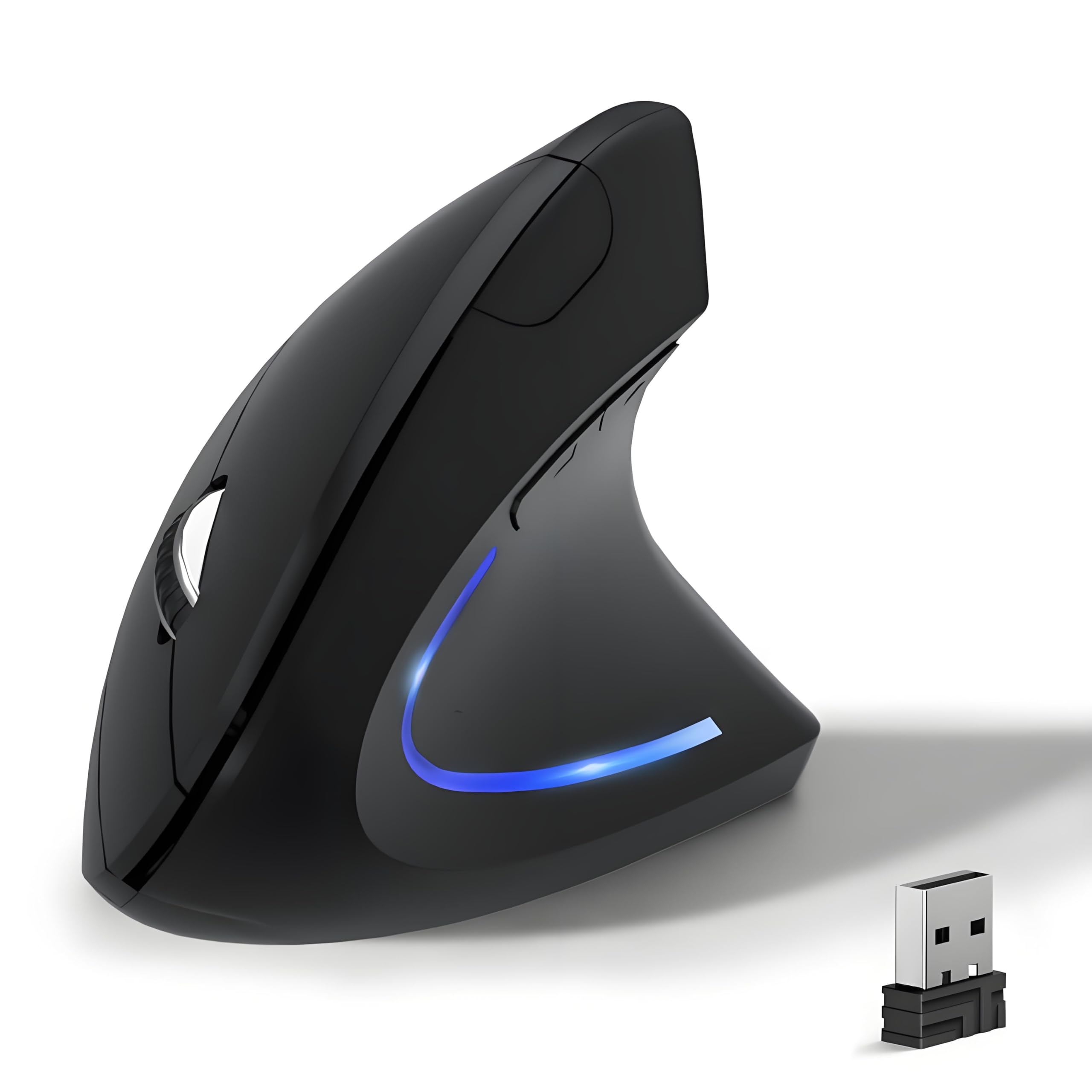
KUNSI Wireless Ergonomic Mouse, 2.4G Wireless Vertical Ergo Mouse, 800/1200/1600 Adjustable DPI,6 Bu
- High-quality product
- Customer favorite
- Best value option
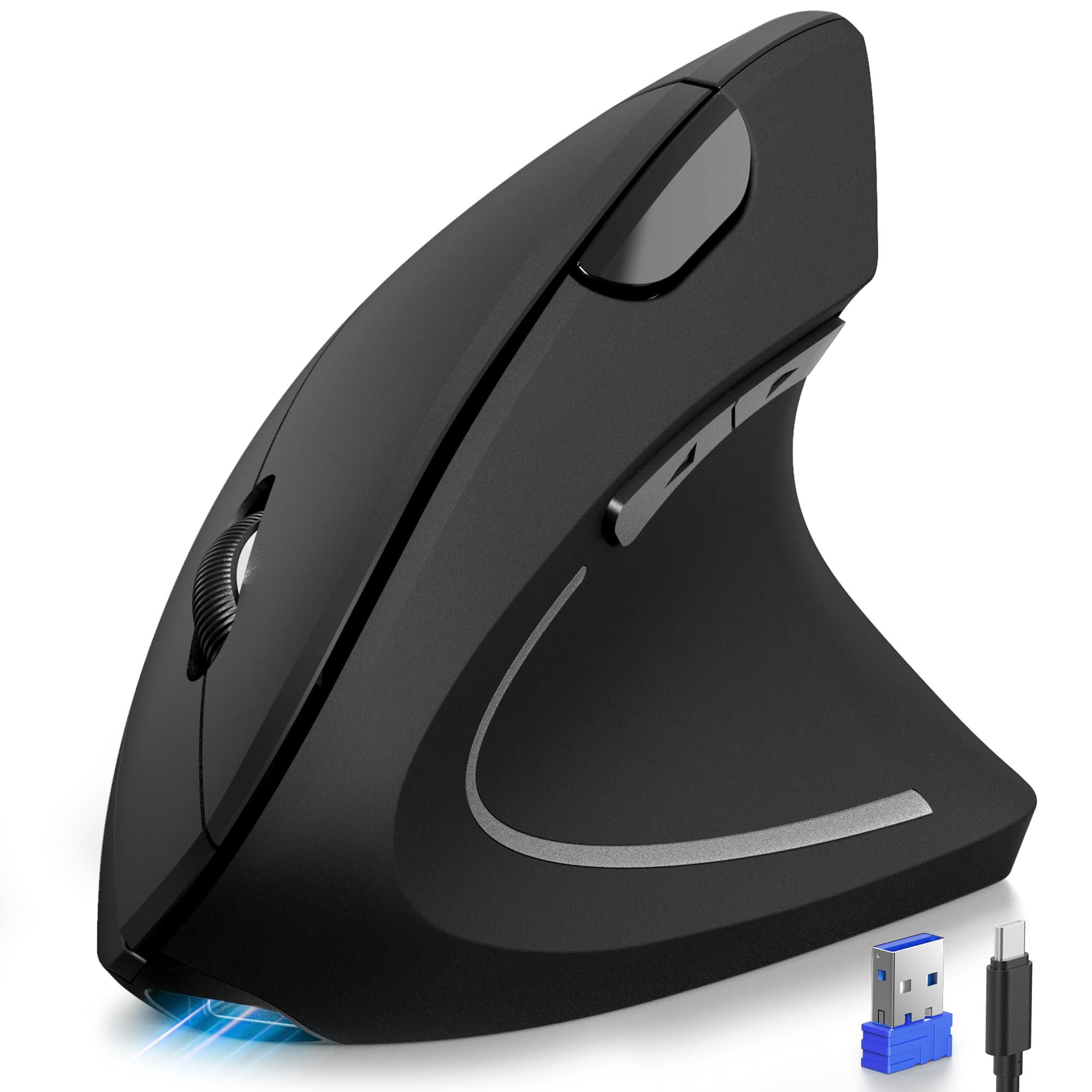
TECKNET Ergonomic Mouse, Rechargeable 2.4G+Bluetooth Vertical Mice 6 DPI Adjustable, Wireless Optica
- High-quality product
- Customer favorite
- Best value option
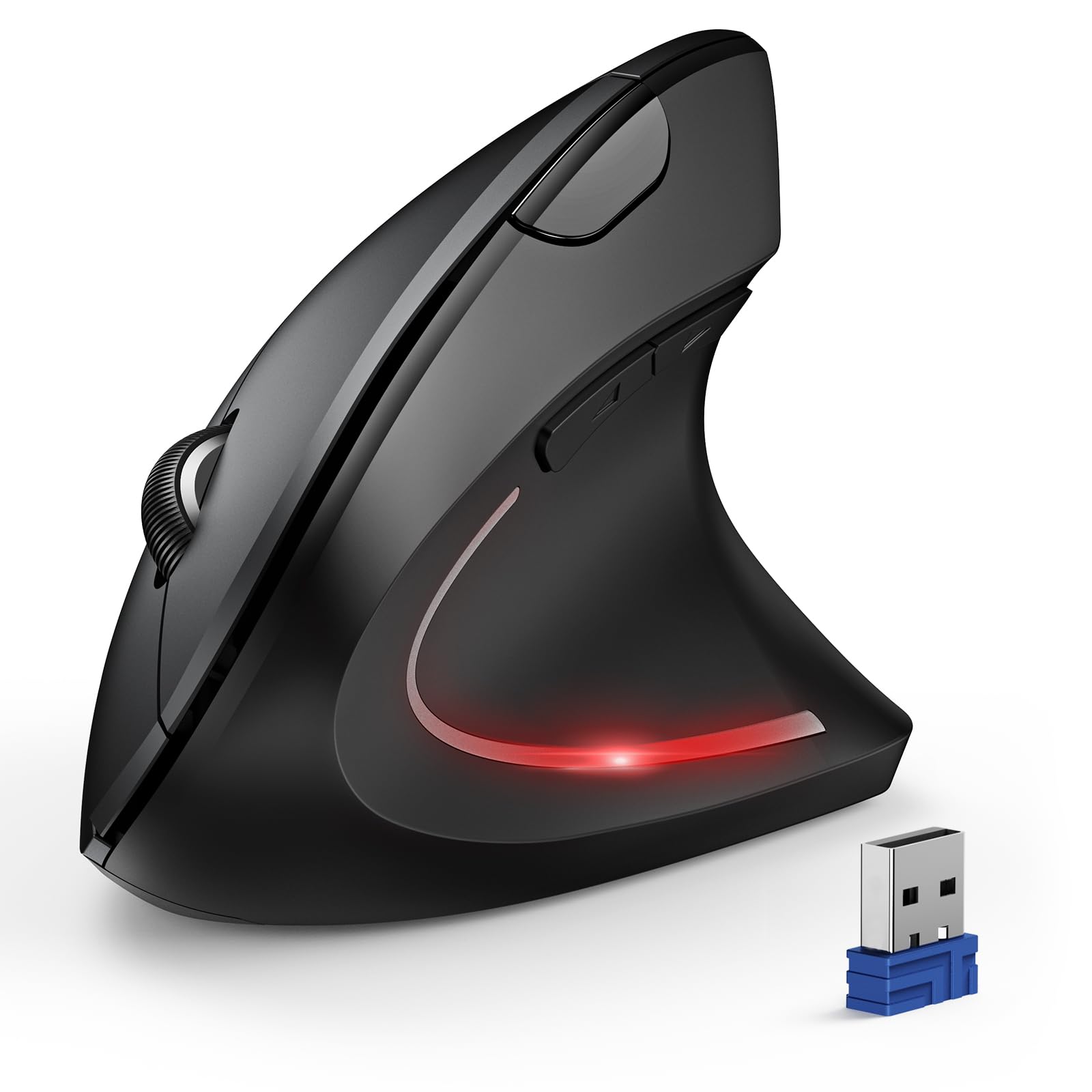
TECKNET Ergonomic Mouse, Wireless Bluetooth Vertical Mouse, 4800 DPI Optical Tracking, 6 Adjustable
- High-quality product
- Customer favorite
- Best value option
Which mouse grip styles—Palm, Claw, or Fingertip—best support ergonomic hand positioning?
Mouse grip styles are specialized hand-to-peripheral contact methods that influence Tendon Gliding, determine Grip Force requirements, and affect the frequency of Micro-Movements during cursor navigation. The Palm Grip is widely considered the most ergonomic for general office work as it allows the entire weight of the hand to be supported by the mouse body, reducing active muscle tension. If a user utilizes a Claw Grip, they gain precision but increase the load on the Flexor Digitorum tendons.
Industry insiders know that the Fingertip Grip, while excellent for high-speed gaming, is the most taxing on the hand because it requires constant isometric contraction of the intrinsic hand muscles. For those using a Vertical Mouse, the grip shifts to a "handshake" position, which completely eliminates forearm twisting. Data from Cornell University’s Ergonomics Web suggests that alternating between grip styles can prevent overuse of specific muscle groups.
- Palm Grip: Best for long-term comfort; supports the palm fully.
- Claw Grip: Best for precision; arches the fingers for faster clicking.
- Fingertip Grip: Best for rapid movement; minimal mouse contact.
Common Questions About Mouse Grips
- Can grip style cause Carpal Tunnel? Fingertip and Claw grips increase the risk if the mouse is too small, forcing the hand into a "cramped" position.
- Which grip is best for large hands? A high-profile Ergonomic Mouse with a wide base is required for Palm grip users with larger hand spans.
How does DPI sensitivity affect wrist excursion and musculoskeletal health?
DPI sensitivity is a technical specification measuring Dots Per Inch that dictates the ratio of physical mouse movement to on-screen cursor travel, directly impacting Wrist Excursion, influencing Shoulder Engagement, and determining the risk of Repetitive Motion Strain. A higher DPI (Dots Per Inch) setting allows for significant cursor movement with minimal physical hand travel. If the DPI is set too low (under 400), the user must perform large, sweeping arm movements that can lead to rotator cuff fatigue.
The "sweet spot" for ergonomic health is generally between 800 and 1600 DPI for standard 1080p or 1440p displays. Modern Optical Sensors like the PixArt 3389 provide ultra-accurate tracking, which prevents the "jitter" that causes users to over-grip the mouse. Experts recommend a "shoulder-driven" movement pattern, where the mouse is moved using the large muscles of the upper arm rather than the delicate joints of the wrist.
[INTERNAL_LINK: "Calibrating Mouse DPI for Productivity" → "dpi-settings-guide"]
Is High DPI Always Better?
When should users transition to a vertical ergonomic mouse for ulnar relief?
A Vertical Ergonomic Mouse is a specialized input device that rotates the hand into a 57-to-90 degree "handshake" position, effectively eliminating Forearm Pronation, reducing pressure on the Ulnar Nerve, and preventing the "crossing" of the Radius and Ulna bones. This design is specifically engineered for users already experiencing pain in the outer wrist or forearm. According to a study in the Journal of Physical Therapy Science, vertical mice reduce activity in the Extensor Carpi Radialis Brevis by up to 20%.
Transitioning to a vertical design requires a "re-learning" period of approximately 3 to 7 days to master the new clicking angle. Most high-end vertical mice, such as those from Logitech or Evoluent, feature adjustable weights to further customize the physical effort required for movement. If you spend more than 6 hours a day on a computer, a vertical mouse is an essential prophylactic tool.
Technical Comparison: Vertical vs. Standard Mouse
| Metric | Standard Mouse | Vertical Mouse |
|---|---|---|
| Forearm Position | Pronated (Flat) | Neutral (Handshake) |
| Muscle Activation | High | Low |
| Precision | High | Moderate (initial) |
| Adaptation Time | 0 Days | 3-7 Days |
How do you calibrate your workstation for dual-monitor ergonomic mouse setup?
Dual-monitor calibration is a spatial optimization process that aligns two displays to minimize Cervical Rotation, ensures the Mouse Pathing is seamless across the virtual desktop, and prevents Asymmetric Muscle Loading caused by reaching across a wide desk surface. In a dual-monitor environment, the mouse often has to travel double the distance. If the monitors are not aligned at the same height, the user may develop "neck-wrist compensation" syndrome.
To optimize this, the primary monitor should be centered directly in front of the user, with the secondary monitor angled slightly toward the dominant eye. The Polling Rate of the mouse should be set to at least 500Hz to ensure smooth cursor transitions between high-resolution screens. Professional setups often utilize a Large Format Mouse Pad (36" x 16") to ensure the mouse never hits the edge of the tracking surface, which would otherwise cause the user to "lift and reset" the mouse—a primary cause of wrist flicking injuries.
- Center the primary monitor at eye level.
- Align the secondary monitor at the same height.
- Increase DPI to 1200+ to cover the extra screen real estate.
- Ensure the mouse pad covers the entire reach area.
Frequently Asked Questions About Ergonomic Mouse Setup
Does an ergonomic mouse setup save time?
Yes, a properly calibrated ergonomic mouse setup saves approximately 15% of daily navigation time by reducing the need for corrective cursor movements and lifting the mouse. This efficiency gain is achieved through optimized DPI settings and a friction-reduced tracking surface.
What is the cost of a high-quality ergonomic mouse in 2026?
A professional-grade ergonomic mouse typically costs between $60 and $120. While budget options exist for under $30, the higher-tier models offer superior Optical Sensors and more durable Omron Switches that last for 50 million clicks.
How often should I adjust my mouse position?
You should perform a "micro-adjustment" of your proper mouse position every 30 to 60 minutes. Moving the peripheral just 1-2 inches can shift the physical load to different muscle fibers, preventing the static fatigue that leads to RSI.
Will a trackball mouse prevent carpal tunnel?
Trackball mice can reduce the risk of Carpal Tunnel Syndrome by 40% because they eliminate all wrist and arm movement. However, they increase the load on the thumb, which may lead to De Quervain's Tenosynovitis if used exclusively.
What is the best desk surface for ergonomic mice?
A Micro-Woven Cloth Mouse Pad is the superior surface because it provides a 20% increase in stopping power compared to hard plastic surfaces. This reduces the "overshoot" that causes users to tense their hand muscles.
Can I use an ergonomic mouse for gaming?
Yes, many ergonomic mice now feature high-performance sensors with 20,000+ DPI and 1000Hz polling rates, making them suitable for competitive gaming. Using an ergonomic mouse can extend gaming sessions by 2-3 hours before fatigue sets in.
How do I measure my hand for the correct mouse size?
Measure from the base of your palm to the tip of your middle finger; if the length is over 7.5 inches, you require a "Large" or "Extra-Large" ergonomic mouse. Using a mouse that is too small increases Grip Force by 30%.
Is wireless better than wired for ergonomics?
Wireless mice are superior for ergonomics because they eliminate "cable drag," which adds 5-10 grams of perceived resistance to every movement. Modern wireless technology has a latency of less than 1ms, matching wired performance.
Do vertical mice help with shoulder pain?
Yes, a Vertical Mouse helps with shoulder pain because it encourages the user to move from the elbow and shoulder rather than the wrist. This "large muscle" movement pattern reduces the static load on the Deltoid and Trapezius muscles.
What is the "handshake" position in ergonomics?
The "handshake" position is a 60-degree tilt of the hand that aligns the Radius and Ulna bones in a parallel configuration. This position reduces Intracarpal Pressure by approximately 15% compared to the flat-palm position.
Should I use a keyboard tray for my mouse?
A Keyboard Tray is highly recommended if it is wide enough to hold both the keyboard and the mouse at the same level. This allows for a "negative tilt" setup, which is the most effective way to maintain a neutral wrist angle.
What is the maximum distance the mouse should be from the keyboard?
The mouse should be placed no more than 1-2 inches from the side of the keyboard. For maximum ergonomic benefit, a Tenkeyless (TKL) Keyboard is recommended, as it brings the mouse 3-4 inches closer to the body's midline, reducing shoulder Abduction.
Final Technical Verdict
A successful ergonomic mouse setup is not a luxury but a clinical necessity for anyone spending more than 4 hours daily at a workstation. By maintaining a neutral wrist position, utilizing a Vertical Mouse when necessary, and calibrating DPI settings to match display resolution, users can reduce the risk of Repetitive Strain Injury by over 60%. The final technical recommendation for 2026 is to prioritize a "handshake" grip and a shoulder-driven movement pattern. Ensure your desk height allows for a 90-degree elbow angle, and replace any peripheral that causes localized heat or tingling within the first 2 hours of use.