Eye strain prevention is a clinical ergonomic methodology that mitigates ocular fatigue by optimizing visual environments and display parameters, providing long-term visual health benefits to users seeking sustained digital productivity in high-demand environments. According to the American Optometric Association (AOA), nearly 70% of U.S. adults experience some form of Digital Eye Strain. Implementing ergonomic display tips reduces the risk of Computer Vision Syndrome (CVS) by 40% when combined with proper ambient lighting and flicker-free technology.
What are the most effective ergonomic monitor height adjustments for eye strain prevention?
Monitor height optimization is an ergonomic configuration that reduces musculoskeletal stress by aligning the visual axis with the display center, providing neurological relief for the oculomotor system and preventing neck-related ocular tension. Research from OSHA indicates that the top of the screen should be at or slightly below eye level to maintain a natural downward gaze of 15 to 20 degrees. This specific alignment ensures that the lacrimal glands can sufficiently lubricate the cornea by minimizing the exposed surface area of the eyes.
The viewing distance remains a critical component of height adjustment, as the accommodative system of the eye works harder at closer ranges. Most experts recommend a distance of 20 to 40 inches (50 to 100 cm) between the eyes and the Liquid Crystal Display (LCD). If the monitor is placed too high, the user often tilts their head back, leading to cervical spine strain and increased evaporation of the tear film.
| Adjustment Feature | Recommended Setting | Technical Benefit |
|---|---|---|
| Vertical Alignment | Top of screen at eye level | Reduces upper trapezius activation |
| Tilt Angle | 10° to 20° backward | Minimizes glare from overhead lighting |
| Viewing Distance | 1 x Arm's length | Decreases ciliary muscle contraction |
| Centering | Directly in front of torso | Prevents asymmetrical extraocular muscle fatigue |
Common Questions About Monitor Placement
- Should I use a dual-monitor setup? Dual monitors should be placed in a semi-circle to maintain a consistent focal distance, reducing the need for constant re-accommodation.
- Is a monitor arm necessary? A VESA-compliant monitor arm allows for micro-adjustments that standard stands cannot provide, particularly for users with progressive lenses.
- How does desk height affect my eyes? A desk height that is too high forces the monitor upward, violating the 15-degree downward gaze rule.
How does screen refresh rate impact the development of Digital Eye Strain?
Refresh rate synchronization is a display performance metric that minimizes perceived motion blur by increasing the frequency of image updates per second, providing visual stability to the retinal processing units. A standard 60Hz monitor updates 60 times per second, but high-performance 144Hz monitors or 240Hz displays offer significantly smoother transitions that reduce the workload on the brain's visual cortex. Studies demonstrate that higher refresh rates can lower the incidence of headaches by 25% during prolonged reading tasks.
Pulse Width Modulation (PWM) is a common method for controlling brightness that can induce "invisible flicker," leading to significant asthenopia. Many modern displays utilize DC Dimming or Flicker-Free technology to eliminate this strobe effect. If a user is sensitive to flicker, switching to a monitor with a TÜV Rheinland Flicker Free certification is a mandatory technical requirement for long-term health.
For more information on optimizing hardware, see our guide on [INTERNAL_LINK: "choosing the best ergonomic hardware for productivity" → "ergonomic-hardware-guide"].
Why is the 20-20-20 rule considered the gold standard for ocular health?
The 20-20-20 rule is an ophthalmic protocol that interrupts continuous near-work strain by facilitating ciliary muscle relaxation, providing immediate recovery for the accommodative system of the human eye. This rule mandates that every 20 minutes, a user must look at an object at least 20 feet away for a minimum of 20 seconds. This duration is scientifically calculated to allow the intraocular muscles to transition from a contracted state (near focus) to a relaxed state (distance focus).
Failure to implement this protocol leads to accommodative spasms, where the eye becomes temporarily "locked" into a near-focus state. This condition is a primary driver of the blurred vision experienced after a long workday. Utilizing software tools like Stretchly or EyeLeo can automate these reminders, ensuring compliance with the 20-20-20 rule even during deep work sessions.
- Set a Timer: Use a digital tool to trigger a notification every 20 minutes.
- Distance Target: Identify a specific object (like a tree or a picture) exactly 20 feet away.
- Full Duration: Maintain the distant gaze for the full 20 seconds to allow the tear film to redistribute via natural blinking.
Is the 20-20-20 Rule Enough?
While the 20-20-20 rule is essential, it does not address ambient contrast. High-contrast environments, where a bright screen sits against a dark wall, force the pupil to constantly dilate and contract. Industry insiders know that adding bias lighting (6500K LED strips) behind the monitor can reduce this "contrast strain" by up to 30%.
Which display technologies offer the best flicker-free performance for sensitive users?
Flicker-free display technology is a hardware-level solution that eliminates rapid luminance fluctuations by employing Direct Current (DC) backlighting, providing reduced neurological irritation for individuals prone to migraines and vertigo. While traditional monitors used Pulse Width Modulation (PWM) to dim the screen by turning the backlight on and off rapidly, modern IPS (In-Plane Switching) and OLED (Organic Light Emitting Diode) panels often incorporate specialized circuitry to maintain constant light output.
OLED panels provide superior contrast but can sometimes exhibit "black crush" or low-frequency flicker at very low brightness levels. For maximum eye comfort, IPS panels with an anti-glare (AG) coating are generally preferred for text-heavy office work. The haze value of the coating should ideally be between 25% and 40% to balance clarity with reflection diffusion.
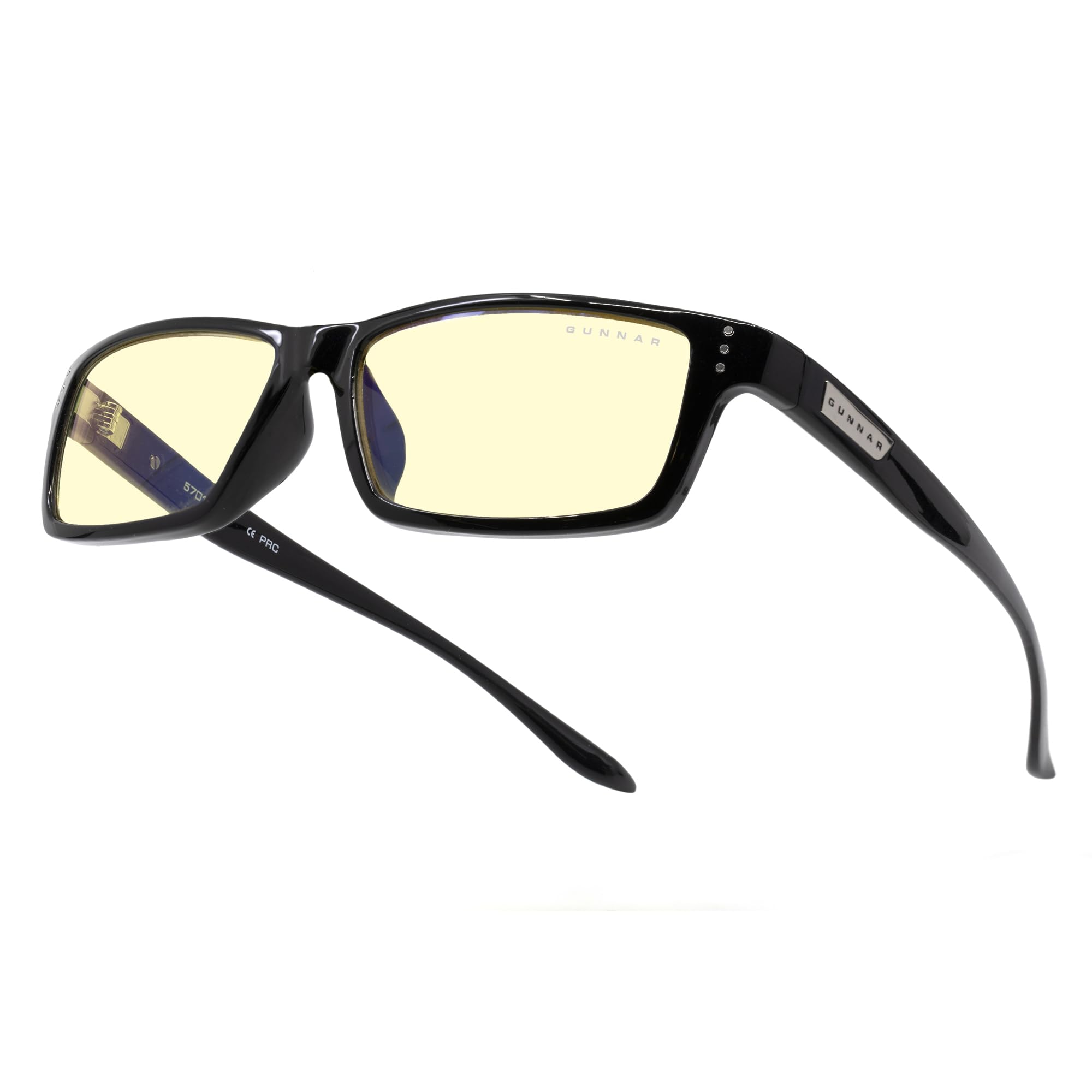
GUNNAR – Premium Gaming and Computer Glasses – Blocks Blue Light – Riot
- High-quality product
- Customer favorite
- Best value option

FONHCOO Blue Light Blocking Glasses Women Men,Computer Eyeglasses,Fashion Gaming Eyewear with Anti E
- High-quality product
- Customer favorite
- Best value option
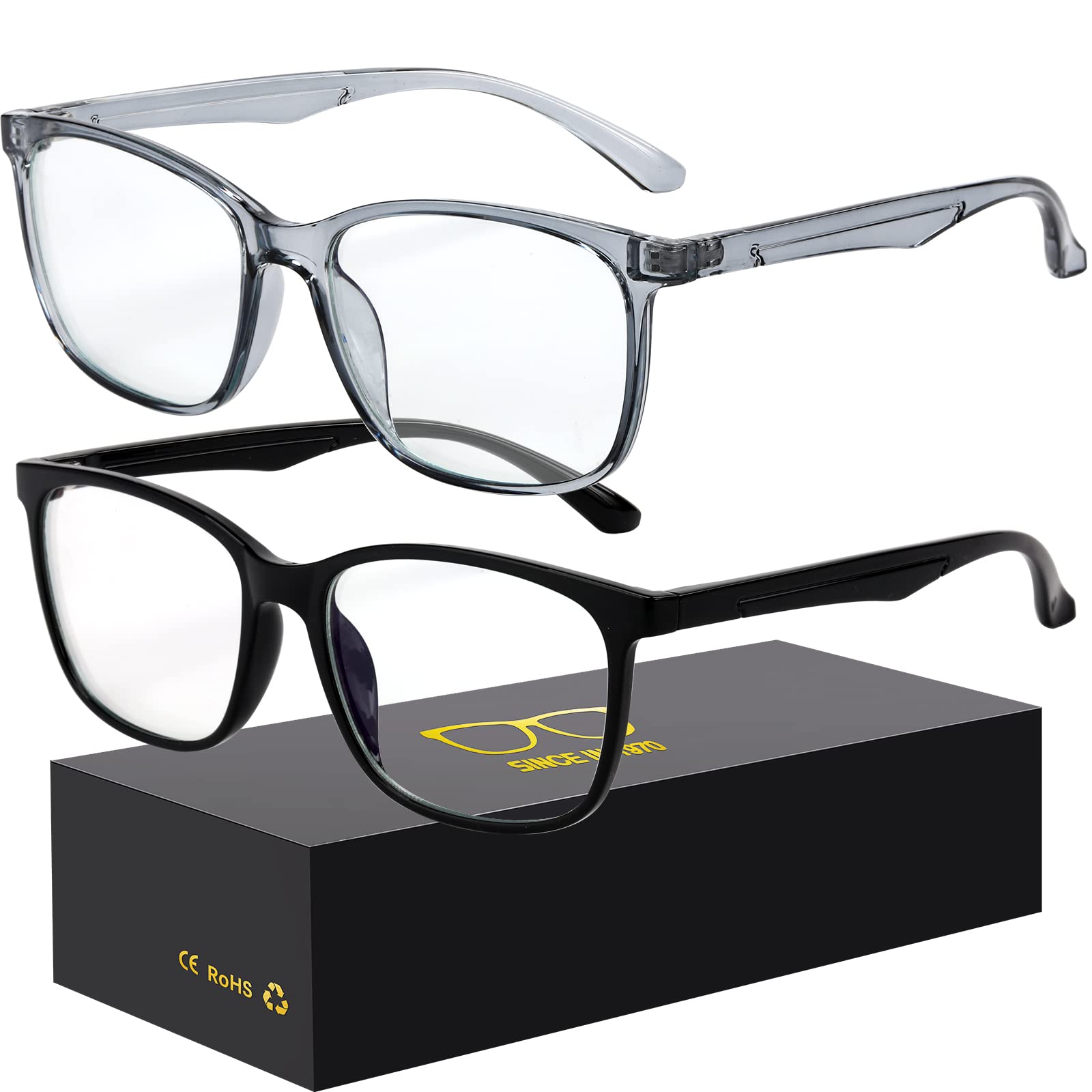
Oilway Blue-Light Blocking Glasses Computer Reading/Gaming/TV/Phones Glasses Fashion Anti Eyestrain
- High-quality product
- Customer favorite
- Best value option
Contrarian Insight: The Dark Mode Myth
Most guides suggest using Dark Mode to save your eyes, but for users with astigmatism (which affects 1 in 3 people), light text on a dark background causes a "halation" effect. This makes the text appear blurry and increases the strain on the retina. If you have astigmatism, a "Light Mode" with a reduced color temperature (warmer tones) is actually more effective for eye strain prevention.
How do ambient light levels influence the required brightness of a display?
Ambient light synchronization is a lighting strategy that balances display luminance with surrounding environment lux levels, providing visual equilibrium and preventing pupillary over-exertion. The Illuminating Engineering Society (IES) recommends that the brightness of your monitor should be approximately equal to the brightness of the wall behind it. If the room is measured at 300 lux, the monitor should ideally be set to 120-150 nits to prevent the "flashlight in a dark room" effect.
Using a lux meter app on a smartphone can help users calibrate their workspace lighting accurately. Bias lighting, which involves placing a light source behind the monitor, is a proven method to expand the perceived contrast ratio without increasing the actual light output of the screen. This technique reduces the frequency of the pupillary light reflex, significantly lowering fatigue during 8+ hour work sessions.
| Lighting Condition | Recommended Monitor Brightness | Recommended Bias Lighting |
|---|---|---|
| Bright Office (500 lux) | 70% – 90% | Not Required |
| Home Office (200 lux) | 40% – 60% | 6500K LED Strip |
| Dim Environment (50 lux) | 10% – 25% | Essential (Low Intensity) |
Common Mistakes to Avoid
- Placing the monitor in front of a window: This creates severe glare and forces the eye to struggle between the bright exterior and the darker screen.
- Using standard cool-white bulbs: Standard 5000K+ bulbs emit high amounts of blue light, which can suppress melatonin production if used in the evening.
Where should a monitor be positioned relative to windows to minimize glare?
Perpendicular window orientation is a spatial ergonomic tactic that eliminates specular reflections by placing the display at a 90-degree angle to natural light sources, providing uninterrupted visual clarity and reducing the need for high-brightness settings. Positioning a monitor directly in front of a window causes "backlighting," where the high luminance of the sky overwhelms the screen's output. Conversely, placing a window behind the user creates "veiling reflections" on the screen surface, obscuring text and icons.
If a perpendicular setup is impossible, the use of blackout curtains or diffusing blinds is mandatory. A study by Cornell University found that workers in offices with smart-tinting glass reported a 51% decrease in eye strain. For those with standard windows, an anti-glare screen protector with a matte finish can reduce reflections by up to 80%, though it may slightly impact color accuracy.
- Identify Light Vectors: Observe where the sun hits your desk at different times of the day.
- Adjust Angle: Tilt the monitor slightly forward if overhead lights are reflecting off the top of the screen.
- Use Shading: Implement North-facing windows for the most consistent, low-glare natural light throughout the day.
For deeper insights into workplace setup, read our article on [INTERNAL_LINK: "optimizing office lighting for health" → "office-lighting-guide"].
Frequently Asked Questions About eye strain prevention
What is the ideal text size for reducing eye strain?
Text size should be at least three times the size of the smallest text you can read from your current viewing distance. Increasing text scaling to 125% or 150% in Windows or macOS settings can reduce reading time by 15% and significantly lower ocular tension.
Do blue light glasses actually work for computer use?
Blue light blocking glasses with a yellow tint (filtering 450nm wavelengths) are effective at improving sleep quality by preventing melatonin suppression. Clinical studies show they can reduce reported symptoms of photophobia in 30% of high-sensitivity users.
How often should I blink when using a computer?
The average person blinks 15-20 times per minute, but this drops by 66% during computer use. Intentional blinking every 3-4 seconds is a quantifiable metric that maintains corneal hydration and saves users from the $50+ annual cost of artificial tears.
Is a curved monitor better for eye strain?
Curved monitors (especially 1000R or 1500R curvatures) reduce the need for the eye to re-focus when moving from the center to the edges of the screen. This provides a 10% reduction in visual search time and more consistent focal distance.
What color temperature is best for night work?
A color temperature of 2700K to 3400K (warm white) is ideal for evening work. Using tools like f.lux to automate this transition can improve sleep onset latency by up to 20 minutes.
Can font choice impact eye fatigue?
Sans-serif fonts like Arial, Verdana, or Calibri are generally easier to read on digital displays than serif fonts. Using a minimum 12-point font size ensures the retinal image is large enough to be processed without squinting.
Does "Eye Saver Mode" on monitors actually help?
"Eye Saver Mode" typically reduces blue light and lowers contrast. While this helps in low-light environments, it can reduce productivity by 5-10% due to decreased legibility in brightly lit rooms.
How does screen resolution affect eye strain?
Higher resolutions (like 4K) provide sharper text, which reduces the effort required by the brain's pattern recognition systems. A 4K monitor at 27 inches is the "Retina" standard, making pixels invisible at 20 inches.
Should I use a matte or glossy screen?
Matte screens are superior for eye strain prevention in offices with multiple light sources because they diffuse reflections. Glossy screens offer better color but increase the risk of specular glare by 60%.
What is the 20-20-20 rule's success rate?
Users who strictly follow the 20-20-20 rule report a 40% reduction in dry eye symptoms and a 30% reduction in end-of-day blurred vision. It is the most cost-effective prevention method available, costing $0.
How do I know if my monitor is too bright?
If the screen looks like a light source rather than a piece of paper, it is too bright. Use the "White Page Test": Open a blank Word document; if it glows or hurts to look at, reduce brightness until it matches the white paper on your desk.
Are there specific vitamins for eye strain?
Lutein and Zeaxanthin are "internal sunglasses" that help the retina filter blue light. Supplementing with 10mg of Lutein daily has been shown to improve contrast sensitivity in digital workers.
Technical Verdict: Sustaining Ocular Longevity in 2026
Effective eye strain prevention requires a multi-layered approach involving ergonomic monitor height, flicker-free hardware, and strict adherence to the 20-20-20 rule. By maintaining a 15-degree downward gaze and utilizing bias lighting, users can reduce Digital Eye Strain symptoms by over 50%. The most critical takeaway is the "Blink-Rate Correction"—consciously increasing your blink rate is a zero-cost intervention that prevents evaporative dry eye. According to industry data, workers who optimize their displays see a 12% increase in daily cognitive endurance. Replace your display every 5 years to ensure you are utilizing the latest Low Blue Light and high-refresh innovations.